SpriteVFX
Impacts
Hit spark
136 × 80 / 16 frames
Find pixel sprite sheet effects for combat, fire, spells, weather, loot and science fiction scenes. Preview animations, build a consistent palette and export engine-ready files.
Combine weapon trails, hit sparks and bursts into readable combat feedback. Browse related sprite sheets and adjust their color direction.
136 × 80 / 16 frames

216 × 136 / 28 frames

148 × 104 / 34 frames
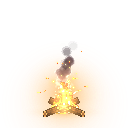
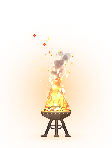
Create a fire-lit room with torches, campfires and natural accents. Inspect looping animations before exporting a coordinated scene kit.
Plan spell charges, elemental bursts and lingering conditions with arcane, ice, holy, lightning and shadow effects.

120 × 86 / 48 frames
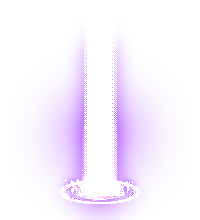
200 × 220 / 118 frames

152 × 116 / 72 frames
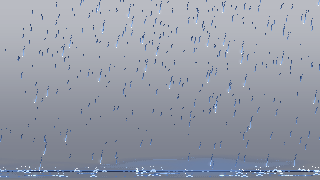
Combine rain, snow, fog, water contacts and drifting nature effects to make readable atmospheric scenes.
Build an item’s arrival, idle attraction and collection feedback from pickup, spawn and interface sprite effects.

56 × 56 / 48 frames

64 × 64 / 72 frames

56 × 60 / 36 frames
Browse energy cores, shields, projectiles, warp arrivals and transitions for responsive science fiction scenes.

112 × 100 / 72 frames

184 × 104 / 72 frames

152 × 116 / 97 frames
A useful sprite sheet effect answers a question for the player: did the attack connect, where is the hazard, which object can be collected, or what just changed? Start with that job before choosing a dramatic animation. A small hit spark may communicate contact more clearly than a large explosion. A slow light around a pickup can guide attention without interrupting movement. SpriteVFX organizes effects into categories for browsing and scene collections for making these decisions. Each effect can be previewed, recolored and exported as a transparent sheet. The collections below suggest combinations, but they do not add gameplay logic. You decide when to trigger an animation, where it belongs in the scene and whether it should repeat. Preview candidates at the size they will actually occupy on screen.
For a weapon strike, separate anticipation, contact and recovery. A melee trail can describe the swing, an impact spark can mark the contact frame, and a short burst can reinforce a strong finish. They need not all be equally bright or begin at once. Try a restrained impact for ordinary attacks and reserve a stronger variation for a critical hit or shield break. Align the effect’s origin with the point of contact rather than the center of the character image. In a side-view game, mirror a directional slash for the opposite facing direction and check that its start still sits near the hand or weapon. When several characters attack together, reduce the number of simultaneous effects before increasing their size. The combat collection links impacts, melee strokes and explosions for this workflow.
A torch, brazier or campfire can make a room feel occupied even when the camera is still. Look for an effect whose loop suits a persistent prop, then place it on the object that emits it. Keep the glow’s brightest region near the flame so it does not compete with distant objectives. The animation’s transparent pixels let it sit over your background art, but they do not create real light on neighboring surfaces. Add lighting separately in the engine if the scene needs it. For multiple fires, offset their starting times to avoid a visibly synchronized row. Check the bottom edge and attachment point while the flame moves, not just on its most attractive frame. A recolored version can suggest an unusual fuel or magical location without changing the prop’s basic silhouette.
Spells often benefit from several visual stages. A rune circle or charge effect can announce an action, a projectile can show its path, and a burst or ring can show where it resolves. Choose stages that share a palette but differ in silhouette. If every stage is a bright circle, the player may miss the transition from harmless anticipation to active damage. Use ice, holy, shadow or lightning elements to give different abilities recognizable families. Keep important timing decisions in gameplay code: an animation finishing is not automatically the same as a hit being valid. Some effects are loops and others are one-shot sequences, so inspect their metadata before assembling a spell. The magic collection brings those families together without pretending that all of them use the same frame rate, dimensions or duration.
Rain, snow, fog and falling leaves influence the whole screen differently from a local impact. Test them with moving characters and interface elements visible, because a pleasant empty-scene preview may hide targets during play. A single animation canvas is not necessarily a seamless tile, and repeating it in a grid can reveal obvious boundaries. Preview the edges before covering a large area. You can place several instances at different offsets or combine a small effect with an engine particle system, depending on your scene. Water effects such as splashes and ripples are useful companions: a character landing in a puddle can produce a local response while broader weather continues behind it. Give foreground weather less contrast when it overlaps critical information, and make intensity a scene-level choice rather than a fixed property of every sprite.
A reward has at least two moments: the object waits to be noticed, then the player collects it. A gem spin, key glint or loot beam can support the first moment; a collect burst or small interface flourish can support the second. Avoid stacking all of them on a common pickup. Save the strongest treatment for rare or important rewards so the effect carries useful information. Position the collectible’s persistent animation in world space, and decide separately whether its confirmation belongs near the item, the character or the interface. These spaces can move differently as the camera pans. Use a consistent family of colors for related rewards, while preserving shape differences for readability. The loot collection groups pickup, spawn and UI effects so you can build the full interaction without treating every reward as an explosion.
A scanner, hologram, force field or energy core can communicate a machine’s state. Establish a quiet idle treatment first, then use a more concentrated pulse or burst for activation. A warning should remain distinguishable from a success signal even when both use a similar blue or green palette. Projectile effects can help explain movement between devices, while a warp or transition can establish an arrival or scene change. These are rendered images rather than simulations, so they do not automatically bend around geometry or illuminate the level. Check how the sprite overlaps the machine art and whether its apparent direction agrees with the action. A mirrored version may solve a left-to-right placement, but it will not provide a new perspective. The science fiction collection is a starting set for these combinations, with related projectile and move categories available alongside it.
Effects drawn from different categories can work together when they share a few deliberate rules. Decide the approximate pixel scale, maximum highlight brightness and amount of screen space an ordinary action may occupy. Then use the palette controls to create variants that fit those rules. Preserve enough contrast inside each ramp to keep small particles visible. Judge the result against your actual background instead of only the editor’s dark preview. Pro batch export can apply one ramp, scale and mirror setting to several selected effects, while each effect retains its own native frame rate and geometry. That gives you coordinated source files, not automatic art direction. Inspect each output because a palette that looks balanced on a large flame may be too dark on a thin trail. Keep a small approved set before expanding the library used by your game.
After choosing an effect, use the sprite sheet generator to inspect columns, frame count and exported dimensions. Each PNG cell has the same size and is not trimmed or rotated. That makes it suitable for regular grid slicing, provided you skip unused cells at the end of the final row. JSON records the rectangles and timing; the Godot SpriteFrames resource already references the real frames. Unity users can slice the PNG as multiple sprites using the cell dimensions. Choose nearest-neighbor or Point filtering to preserve pixel edges and check the engine’s compression settings. If your pipeline needs another atlas format, export a PNG sequence and repack the frames in the tool that supplies your importer. Always play the imported result once: successful extraction of a ZIP does not prove that frame order, looping or attachment offsets are correct in the engine.
A complete visual kit is not necessarily a large download. Reuse an effect thoughtfully, adjust color for related actions and avoid exporting at a larger scale than your game needs. The browser checks image dimensions and total pixel work before generating files; when a batch exceeds those limits, reduce scale or split the selection. Free exports are single-effect downloads with a visible watermark and a daily allowance of 10 per browser. Pro adds watermark-free output and batches of up to 20 effects after verified payment. Every export includes the upstream MIT license and attribution files. Keep those notices with redistributed material, and describe the assets as based on pixelfx rather than exclusive artwork. Save the settings with your game assets so future changes to a palette or frame layout can be reviewed against a known earlier export.
Categories group the source effects by type. Scene collections combine several categories around a gameplay task, such as communicating a hit or rewarding a pickup.
No. Downloads contain rendered animation frames. You control triggers, placement, lights and collision behavior in your game engine.
Pro can export up to 20 selected effects per batch, subject to the pixel budget. A large scene collection may need several selections.